What you'll learn
Before you start
- The renewal email from your carrier
- Your existing account credentials (email & password)
- Knowledge of any company changes (new states, locations, class codes, etc.)
Open the Renewal Email
Your carrier sends a branded email when it's time to renew.
Look for an email with the subject "Workers' Comp Renewal". It includes your policy number, company name, and a "Review Renewal" button.
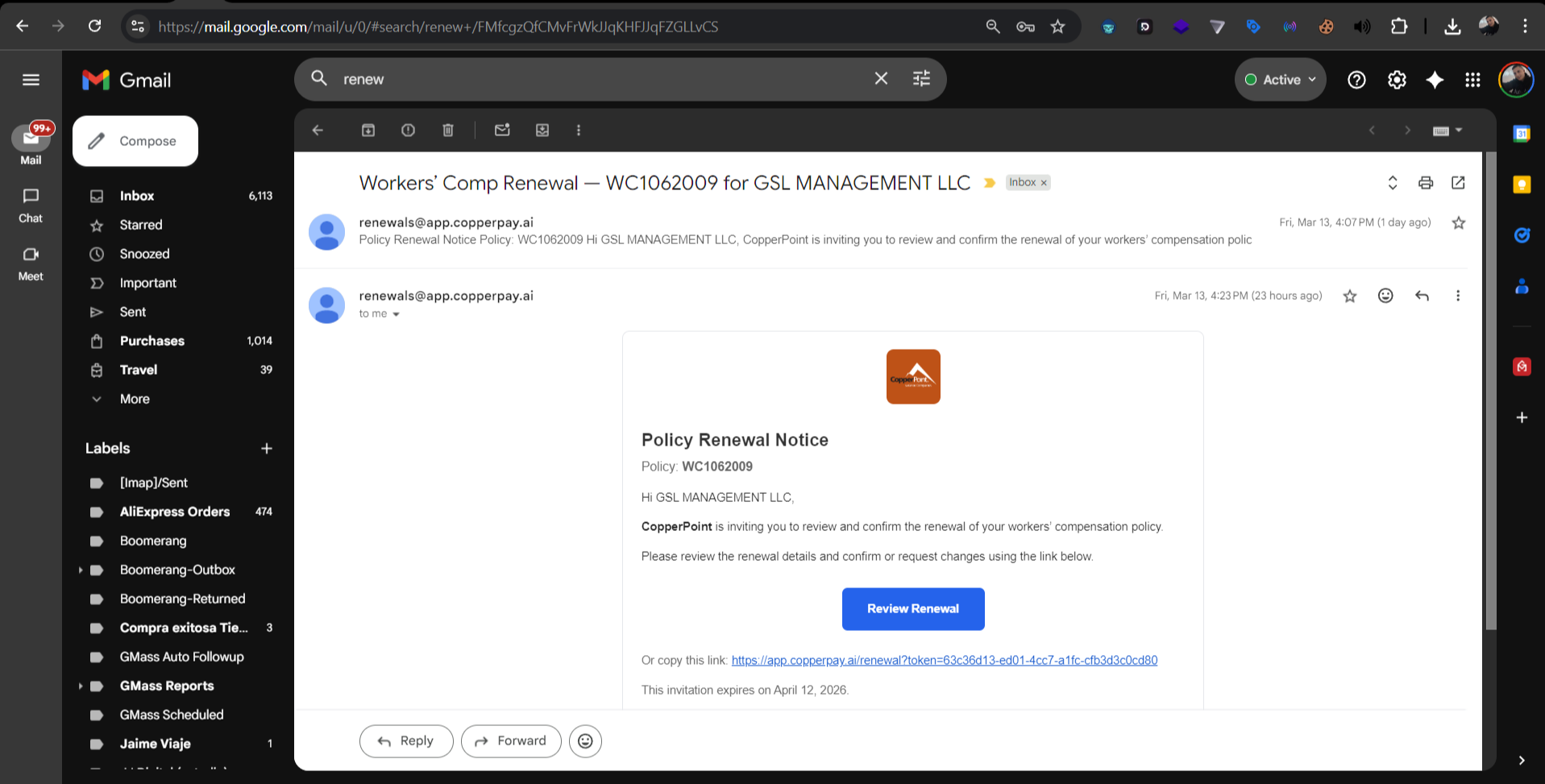
Click "Review Renewal" to open the portal.
Sign In to Your Account
Since you already have an account from your initial onboarding, just sign in.
You'll see your carrier-branded login page. Log in with your email and password, or use Google Sign-In.
Company Updates — Choose Your Path
Step 1 of the renewal wizard. Has anything changed since the last policy term?
You'll see your policy details at the top (policy number, carrier, states, class codes, dates), along with a countdown showing how many days you have left. Below that, two options:
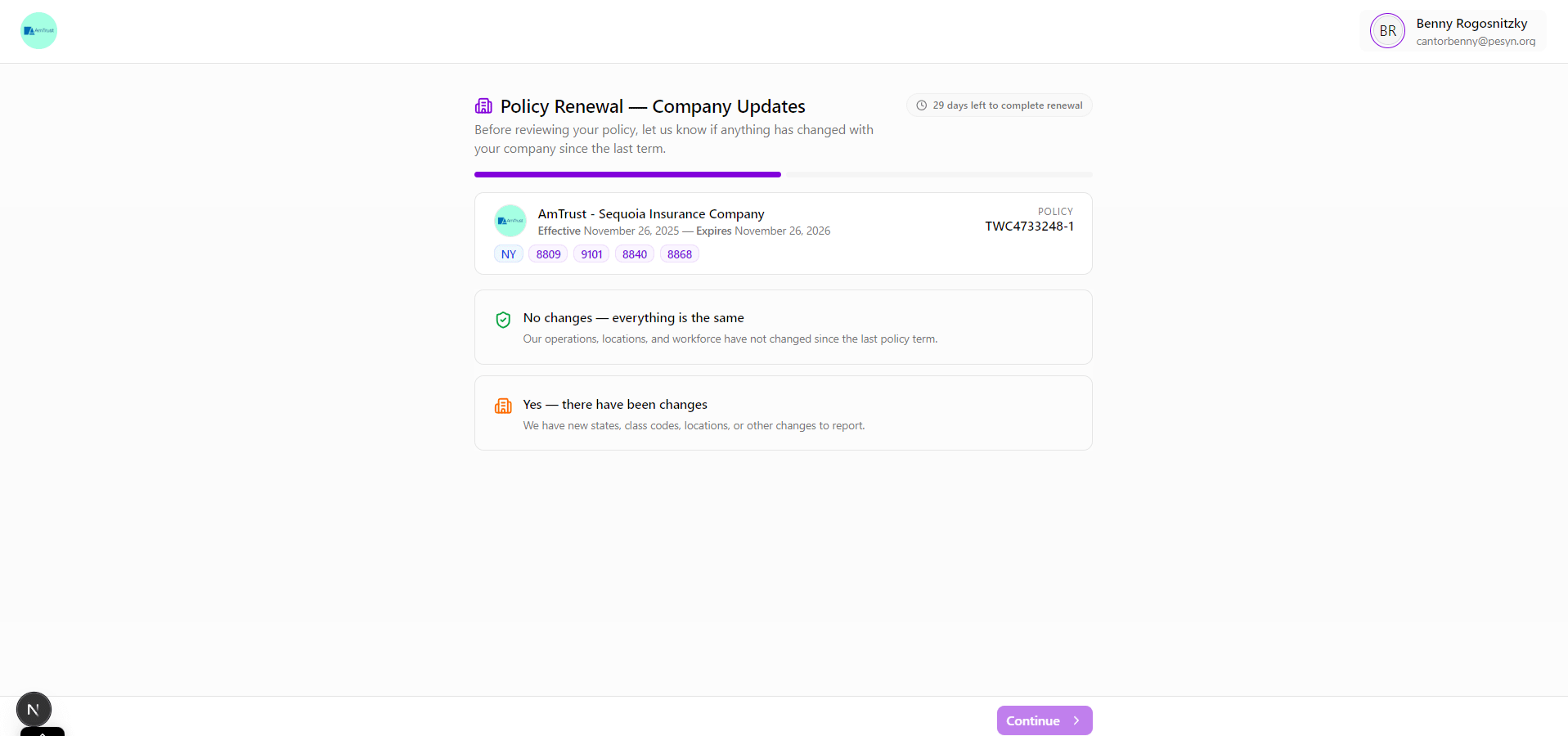
- "No changes — everything is the same" — your operations, locations, and workforce haven't changed
- "Yes — there have been changes" — you have new states, class codes, locations, or other changes to report
Path A: No Changes
The quick path — renew your policy as-is.
If nothing has changed, select "No changes" and click Continue.
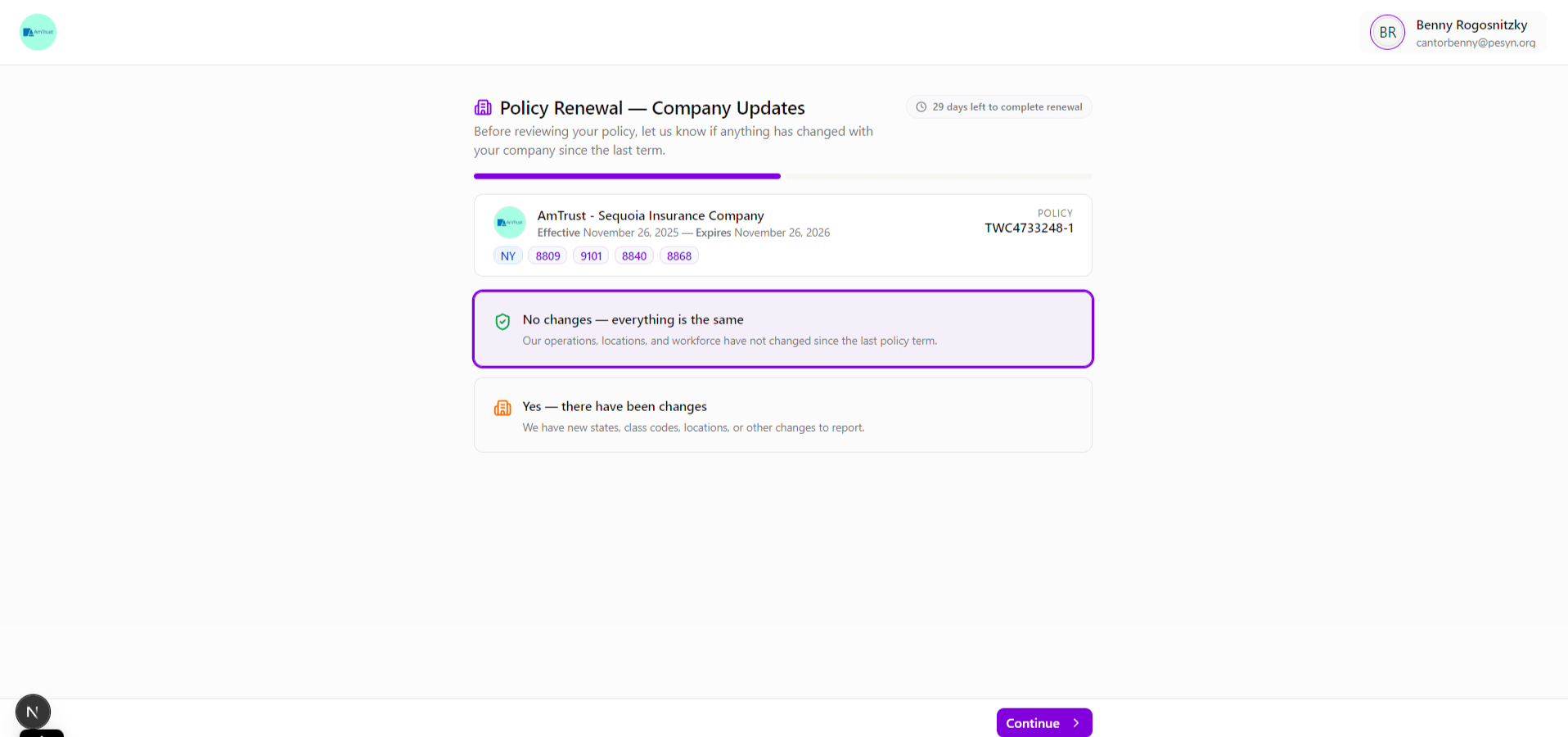
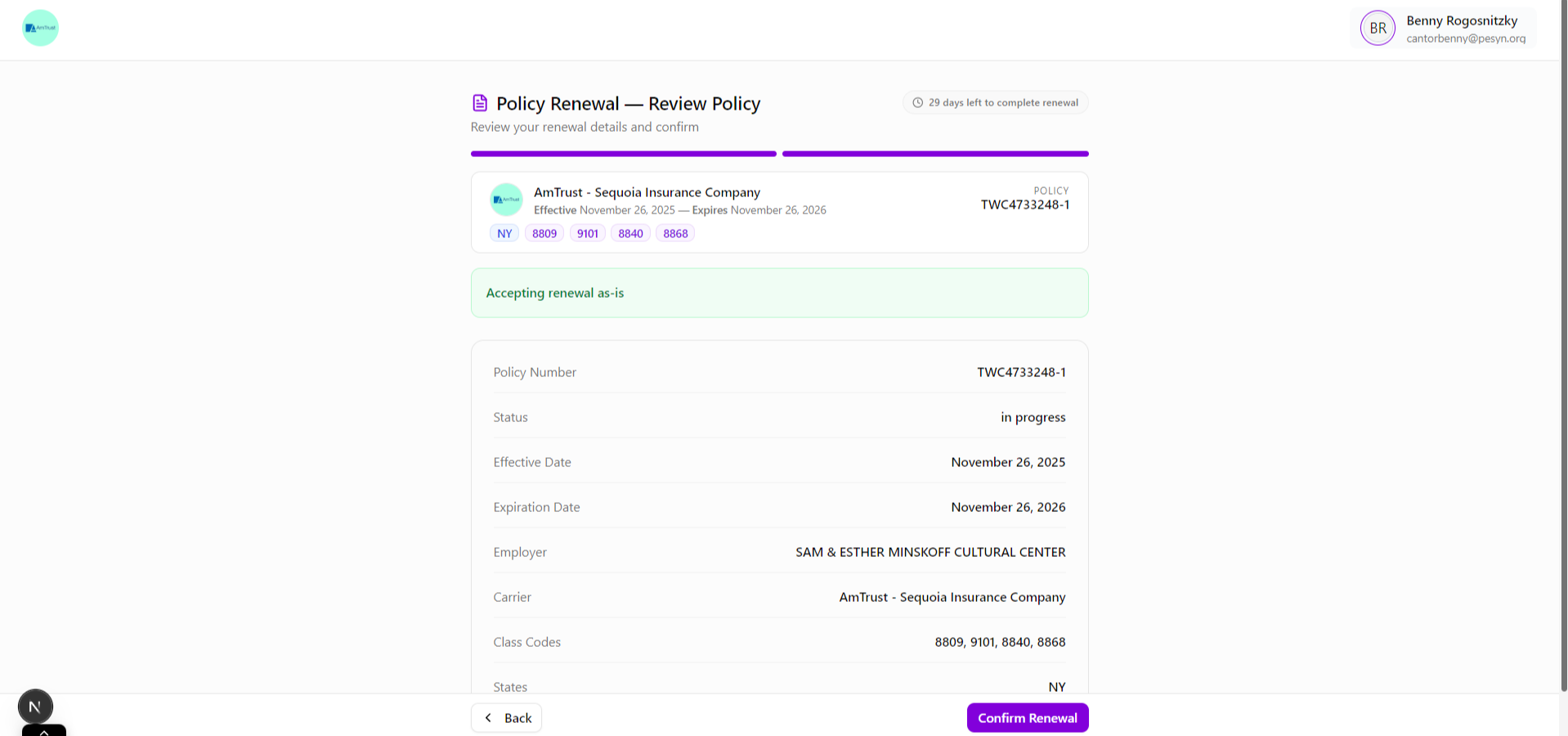
You'll go straight to the review page where you can confirm the renewal.
Path B: Report Changes
Select what has changed and provide the details.
If things have changed, select "Yes — there have been changes". A grid of change types appears:
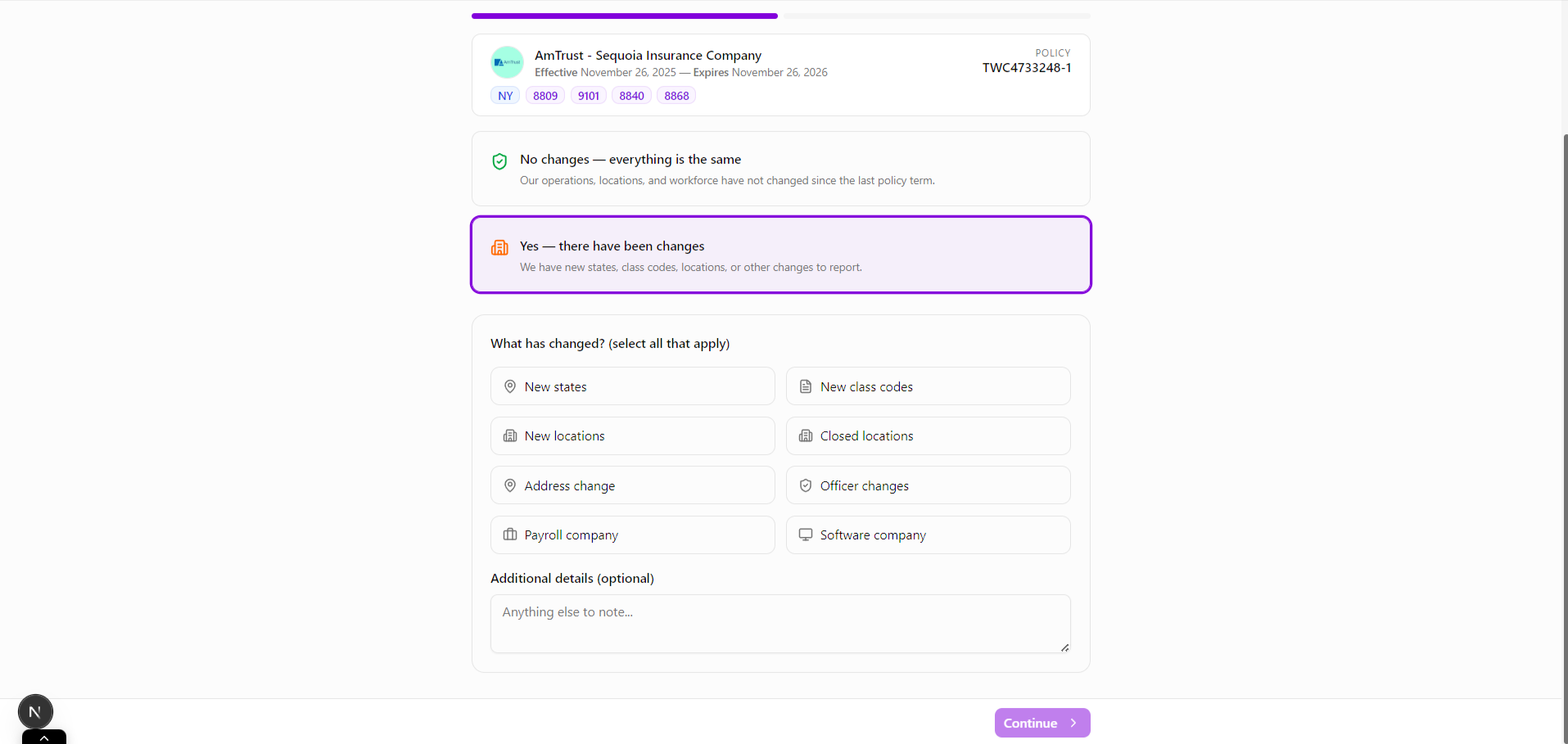
Select all that apply. For each type, additional fields appear so you can provide the details. For example, selecting "New states" shows a state search dropdown:
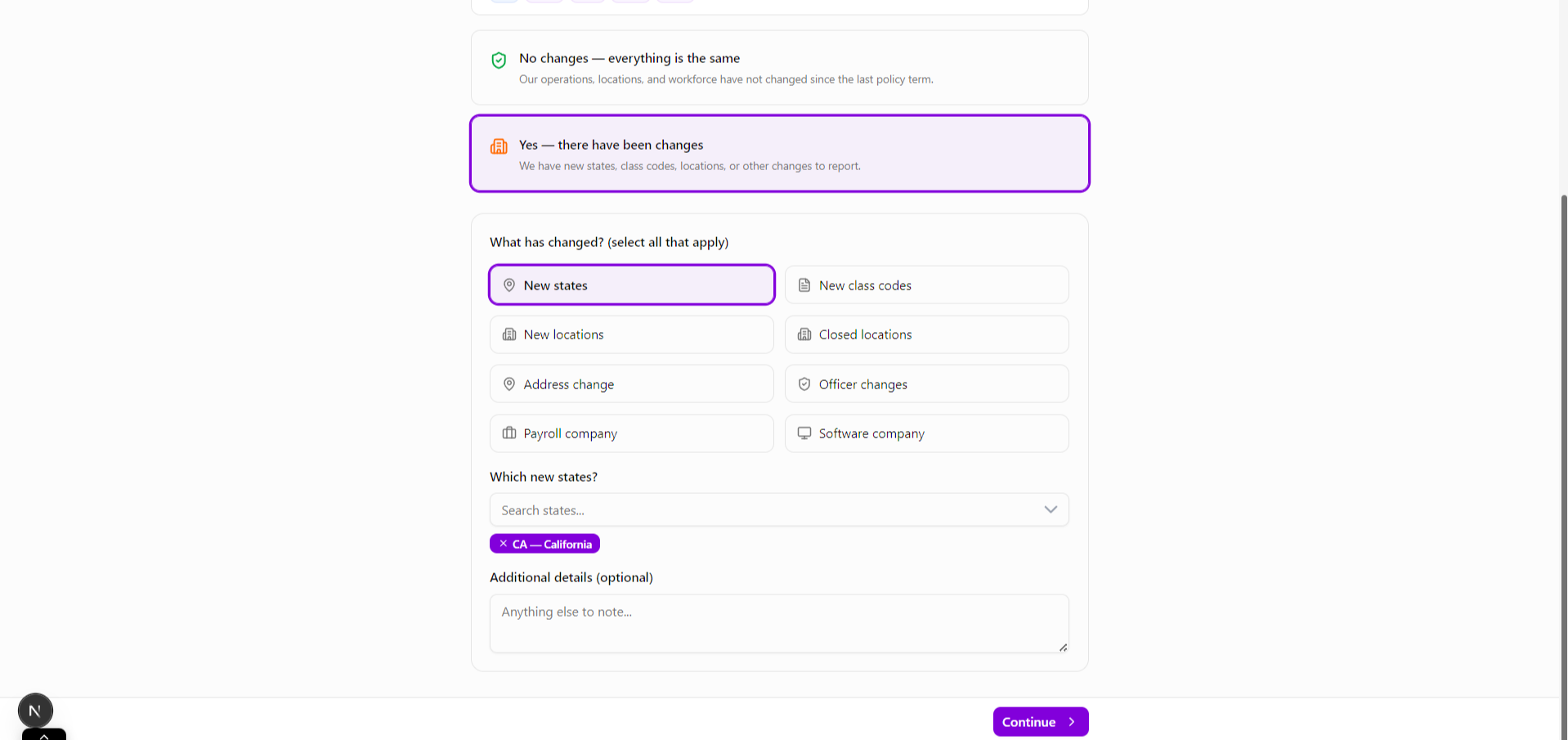
You can also add notes in the Additional details text area. Click Continue when done.
Review & Confirm
Check your changes and submit the renewal.
If you reported changes, you'll see an orange banner: "Requesting changes to renewal." Your changes are summarized in an orange box, followed by your full policy details.
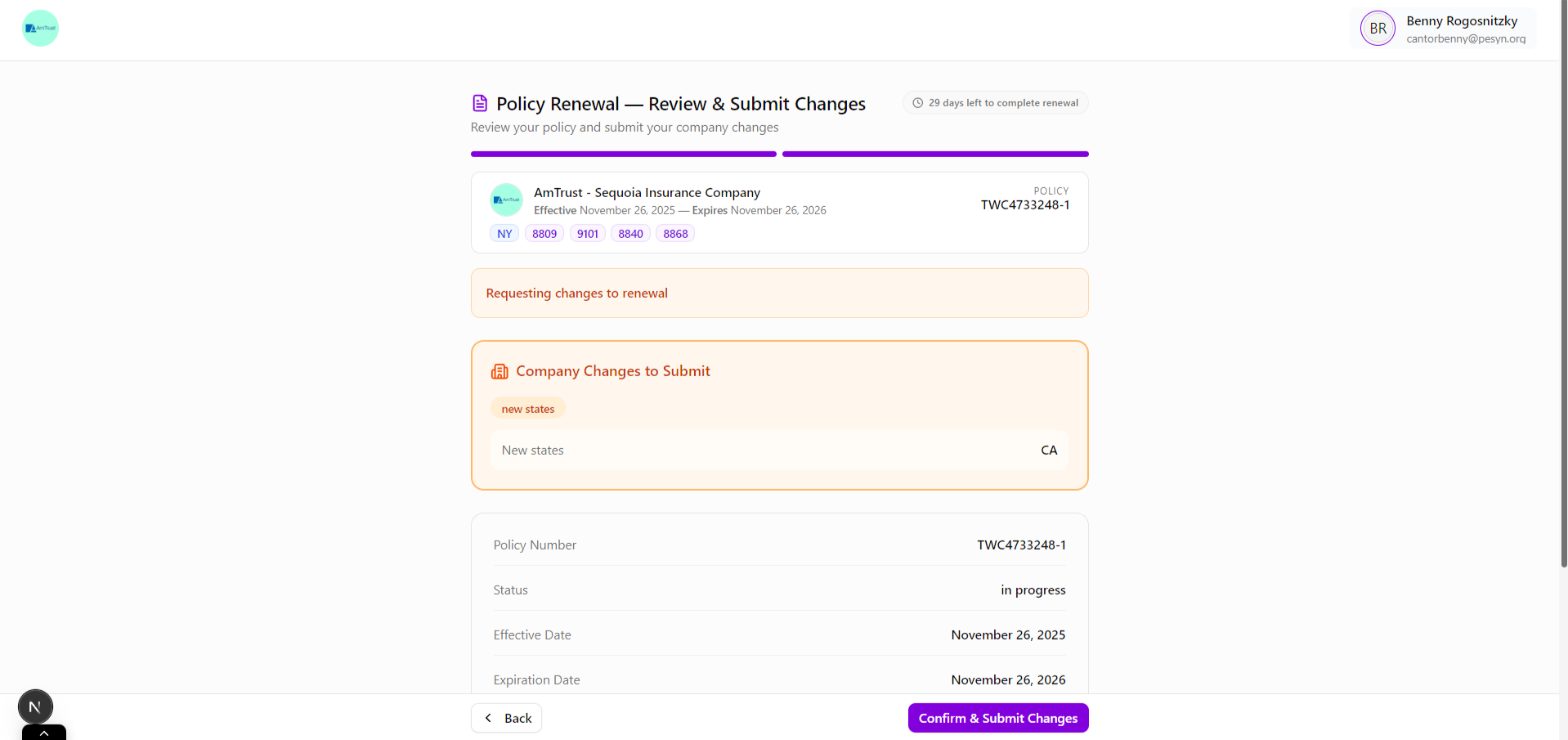
Click "Confirm & Submit Changes" to finish.